
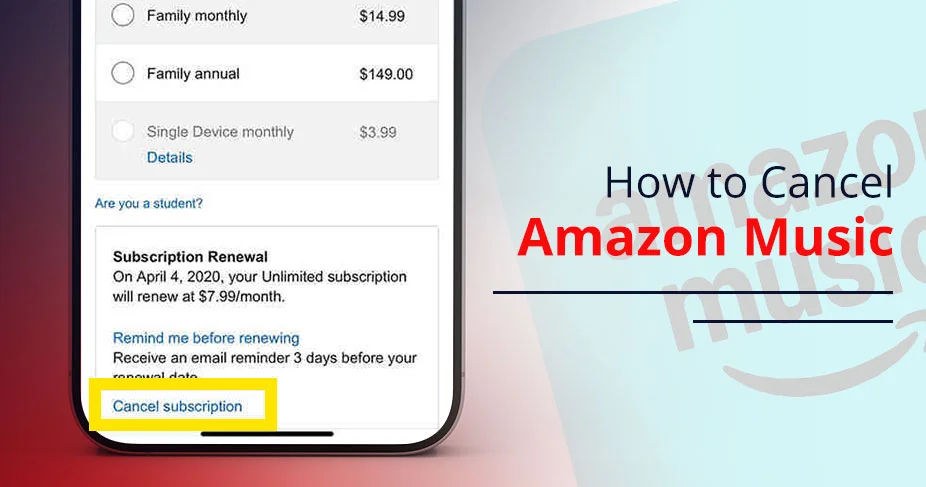
How to Cancel Amazon Music? Stop Paying for What You Don’t Use
You can easily cancel your Amazon Music Unlimited, including Individual, Family, or Single-Device plans. Simply go to Amazon Music Settings on your web browser. Next, choose to cancel the subscription and don’t miss the confirmation step. In most cases, it just takes me a maximum of 2-3 minutes to cancel my subscription. If you don’t want to be charged, terminate this service at least 24 hours before your renewal date. In this how-to guide, you will learn the detailed steps for cancellation for Android, iOS, as well as desktop.
Quick Answers!
- You should cancel the subscription from third-party services, such as the App Store or Google Play Store.
- If you have Amazon Music Unlimited, you can cancel it separately. However, the basic Prime Music benefit is part of Prime and can’t be removed on its own.
- While all plans can be canceled, monthly subscribers have the additional option to pause their membership to retain library data without being charged.
- According to the Amazon Music Terms of Use, you will not get a refund of fees that are already paid. However, partial refunds may be granted via Customer Support in specific regions or for accidental renewals.
- The pausing feature works just like an alternative to cancellation. However, understand that you can’t listen to songs, as the titles will be greyed out.
- Subscribers can take advantage of the plan till the last day of the billing cycle.
- All your purchased music will stay in your Amazon account library.
Things to Know Before Canceling Amazon Music
Be aware of the following key points so that you can avoid unexpected data loss.
- Access will be there until your existing billing period is over.
- You will lose access to streaming downloads, but any MP3s you purchased will stay in your library forever.
- You can pause your monthly subscription if you are taking a break. The impact will be effective at the end of your existing billing cycle.
- Amazon won’t cancel your subscription if you have purchased your Amazon Music subscription from a third-party provider. You need to discontinue it from the respective service’s subscription management settings.
- When you cancel your Amazon Music subscription, any digital purchases you have will remain in your account so you can access them easily.
How To Cancel Amazon Music on Desktop (Web Browser)
Follow these steps as guided below:
Warning! Avoid following these steps if you have an Amazon Music Prime plan. This is a perk of your Prime membership. When you cancel it, the result is a full cancellation of all the benefits.
- Navigate directly to the Amazon Music Settings page (amazon.com/music/settings) on your desktop browser.
- Sign in with your existing account.
- Move towards its Settings.
- Navigate to Amazon Music Unlimited.
- Choose the Cancel button under Subscription Renewal details.
Note: If your chosen plan is eligible for pausing subscription, you can go for it.
- Just confirm that you are canceling the subscription.
Expert Tip! You can easily cancel the subscription as per your needs. But make sure to discontinue at least 24 hours before the renewal timestamp of your billing cycle ends.
How To Cancel Amazon Music on Mobile (Android)
Go through these steps to know how you can cancel the subscription.
- Open the Amazon Music application on your Android device.
- Tap on your Profile Icon or the Settings gear in the top right corner to open the menu.
- Choose Amazon Music Unlimited.
- It will open the Subscription Renewal section.
- Here, you will find the Cancel Subscription button.
- Tap on it.
- Choose a reason why you are cancelling the subscription.
- Lastly, confirm your cancellation.
How To Cancel Amazon Music Through Apple Subscriptions (iOS Users)
Now, we will cancel the subscription by using Apple Settings.
Note: If you delete the application from your iOS device, the subscription will continue.
- Open Settings.
- Go to your name.
- Tap on Subscriptions.
- Choose an Amazon Music subscription.
- Tap on Cancel Subscription.
Pro Tip! If you are seeing that there is no Cancel button, it clearly means that you have already cancelled your Amazon Music subscription.
How To Cancel Amazon Music on Alexa Devices
If you want to unsubscribe from Amazon Music on Alexa devices, it is very easy to do so.
You just need to turn on your Alexa-enabled device or Amazon Echo. After that, ask it, “Alexa, cancel my Amazon Music Unlimited subscription.” Then, it will confirm, “Are you sure you want to cancel the subscription?” That’s it!
How to Cancel Amazon Music on iTunes
Follow the walkthrough below for canceling your subscription on iTunes.
- Open your web browser.
- Navigate to support.apple.com.
- Scroll down a bit to find Billing and Subscription.
- Click See or cancel subscriptions.
- Your browser window will take you to the iTunes page. Alternatively, you can download the iTunes app.
- Open it.
- Choose Account.
- Click on View Account.
- Look for Subscriptions under the Settings option.
- Click Manage.
- Here, you need to find out your Amazon Music subscription. Click on it.
- Choose Cancel Subscription.
- Confirm it.
How to Resubscribe to Amazon Music?
Follow these steps.
- Head to Your Amazon Music Settings on your chosen browser.
- Choose a different plan. Otherwise, see a renewal option.
- Tap on it!
You have successfully resubscribed to Amazon Music.
Can I Pause My Amazon Music Subscription?
YES! You can easily pause your Amazon Music subscription whenever you want. But remember one thing that if you have purchased the monthly plan, you will be eligible to pause the membership. It will pause for the whole month, and it becomes effective when your current plan expires, so you don’t need to pay for the next month. Make sure that you can’t pause the plan if you have taken a free trial, a yearly plan, a promotional offer, or any other service provider.
Note: You will not be able to play music until you resume it. However, song titles will become greyed out as the encrypted cache files are removed from your device, so that you will get more storage space. In addition, if you have taken the subscription of a Family or Individual plan, you will also lose access to chosen audiobooks at the end of the billing cycle.
Note: Pausing or canceling will eventually trigger the removal of offline cached files to free up device storage.
Why Can’t I Cancel Amazon Music? (Common Issues & Fixes)
Let’s look at these common reasons and their solutions for not being able to cancel the subscription plan.
Issue 1: You have subscribed to a third-party provider, but you are trying to cancel the service from Amazon.
Fix: You need to unsubscribe from Amazon Music on the Google Play Store or Apple Subscriptions.
Issue 2: You have missed the confirmation message.
Fix: Make sure you are clicking on every prompt until your screen is showing you an “Are you sure?” window. This message is the confirmation from Amazon that you are cancelling Amazon Music.
Issue 3: There are some app limitations, such as app glitches, temporary server down, etc.
Fix: Instead of using mobile applications, I recommend you use a desktop browser. After that, you can directly move towards Amazon Music Settings. From here, you can easily manage your plan.
Issue 4: You have logged into the other account, which does not have an Amazon Music subscription.
Fix: Sign out of your existing Amazon account. After that, you need to log in from the account where Amazon has sent you a confirmation email or Music billing notifications.
How to Check If Amazon Music Is Successfully Cancelled
There are some tips and tricks that will confirm for you that you have successfully cancelled your subscription plan.
- First, you can start by checking your inbox section, where Amazon has sent you an email regarding the cancellation confirmation.
- After that, you can check for Memberships and Subscriptions under Amazon.
- Log in to Amazon.com with your necessary credentials.
- Move towards Your Account.
- Choose “Memberships & Subscriptions”.
- Look for Amazon Music Limited.
- Then, click on it.
- Confirm the window that says you have already cancelled the subscription. Otherwise, it will show you the end date.
- Next, you can directly go to the Amazon Music Settings page, where you will see the status of your subscription plan.
Amazon Music Alternatives
Go through the following tabular format to know other alternatives to Amazon Music.
| Platform | Individual Plan | Family Plan | Student Plan | Notes |
| Spotify | You can check current localized pricing (starting at ~$12.99+ for Premium Individual). | $21.99/month | $6.99/month | There is a strong global presence. |
| Apple Music | $10.99/month and 3 months free for new users. | $16.99/month | $5.99/month | It is integrated with the Apple One bundle (includes iCloud, TV+, and Arcade) |
| YouTube Music Premium | $10.99/month, and it offers a free trial for one month. | $16.99/month | $5.49/month | It consists of YouTube Premium (ad-free video and music). |
| Tidal | $10.99/month + applicable sales taxes (HiFi). Moreover, if you want to have an add-on of a DJ Extension, it costs you $9.00 / month + applicable sales tax. | $16.99/month + applicable sales tax | $5.49/month + applicable sales tax. | This service offers Dolby Atmos and Hi-Res FLAC. In addition, it is suitable for audiophiles, but you need to pay for its subscription. |
| SoundCloud Go+ / Pro Unlimited | $10.99/month (Go+) | NA | $5.49/month | It is best for discovering underground music. |
Conclusion
You just need to follow the above-stated cancellation steps in order, as clicking on the confirmation step, where the pop-up button appears asking if you are surely willing to cancel the subscription, is very important. Moreover, you can only access all the purchased digital content in the library even after cancellation of the subscription. Besides this, if you don’t want to terminate this service, pausing the membership can be your go-to option. When you pause your plan, you don’t need to pay anything else. So, you need to understand which approach you will go for.
Most Commonly Asked Questions With Their Answers
Here, we will resolve all your confusion more clearly on cancelling Amazon Music.
Q1. Can I cancel Amazon Music anytime?
Ans. YES! You can easily discontinue the Amazon Music service whenever you want.
Q2. Will I get a refund after canceling?
Ans. NO! Generally, Amazon doesn’t offer a refund after canceling Amazon Music if you have used it for a partial period. You can get a refund only if there is an accidental or unused subscription through support.
Q3. Can you keep downloaded music from Amazon Music after cancelling?
Ans. YES! All your purchased music will stay in the Amazon library even after you have cancelled your Amazon Music subscription. In addition, there is no need to have a subscription to listen to your favorite music.
Q4. How do I transfer my music collection to another music service?
Ans. You can transfer your top list of music collections to another service by using third-party tools, such as Tune My Music, SongShift, and many more.
Q5. Does Amazon Music end immediately?
Ans. NO! You have access to Amazon Music till the end date of the billing cycle.
Q6. Can I restart Amazon Music later?
Ans. YES! You can easily restart Amazon Music after cancelling the subscription at any time.
Q7. How to cancel an Amazon Music free trial?
Ans. Follow the instructions below:
- Go to Amazon Music on your browser.
- Click on the Settings menu.
- Navigate to Subscription Renewal details.
- Choose the Cancel button.
- Confirm your cancellation.
Note: Consider cancelling your free trial at least one day before your billing cycle is going to end. Doing so can save you from being charged due to an auto-renewal policy.