
How to Turn Off Read Receipts on iPhone: Mastering iMessage Privacy!
We are all accustomed to checking every time we send someone a message on any messaging tool – we see if they have seen it or not. Isn’t it? By identifying this curiosity, iPhone messaging app (iMessage) and Android direct message app (Google Messages) have launched the feature, keeping a similar kind of feel, especially a message-read or delivered icon under each text. But sometimes you just need to switch it off – hiding the status from the sender. Well, is it really possible to hide that you have seen it? The answer is yes, you can do it on the messaging app itself. We help you know how to turn off read receipts on iPhone in this guide, so read ahead to explore interesting information.
Things to Remember:
- Read receipts on iPhone notify the sender that the message has been seen by the receiver with a ‘Read’ icon under the message.
- Turning off read receipts is also available and doable from the users’ end.
- Users can turn off read receipts on Apple’s and Google’s Messaging apps.
- Once you disable read receipts on your device, the sender won’t find out whether you’ve read their chat.
- An alternative to turning off read receipts is to enable focus or aeroplane mode. So, you turn on the aeroplane to see the message, and then get back to normal.
What Are Read Receipts on iPhone?
Read receipts are a feature in a messaging app, whether it’s a third-party app or built-in. The primary purpose of this is to hide your activity on someone’s message. So, when someone enables it, it works for their benefit. For example, the sender will not be able to identify if the message has been opened yet or not. It’s only the receiver who knows this thing.
Basically, it affects (hides) the normal indication, such as Read, which displays when the message is opened.
‘Read Receipts’ is helpful for the recipient of the message. Because they can easily trick the sender by turning it off, and seeing the message without informing them. Usually, the read receipts are turned on by default, but the user can turn them off through the app on iPhone.
Read Also:– What Does SOS Mean On Iphone?
Why Turn off Read Receipts on the iPhone?
Before moving ahead with the methods, we’ll discuss some common reasons.
- No Misunderstanding: Turning read receipts off prevents misunderstandings, like the message is seen but no response yet.
- Privacy: Disabling receipts hides your online activity and helps maintain control.
- Potentially Reducing Stress: Constant messages in a very large quantity can feel irritating. You can just turn it off and release pressure to reply instantly.
- Flexibility in Responding: Since it doesn’t notify the sender, you can respond later even if you have read it.
How to Turn Off Read Receipts on iPhone
The following section will provide you with the method to switch your read receipts off:
For iPhone –
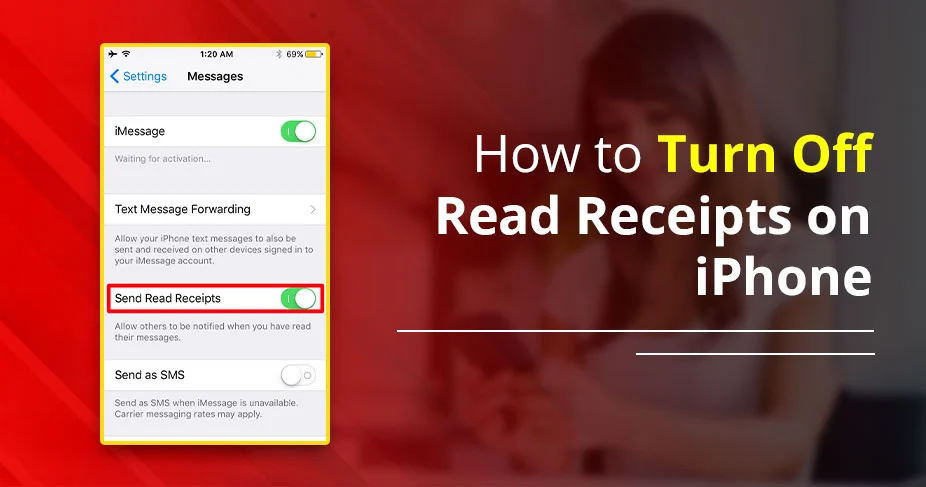
- Launch the Settings application on your iOS device.
- After that, tap Messages.
- Next, turn off Send Read Receipts. After doing so, your read receipts will be effectively turned off for all Apple messages.
- Now, they’ll only see “Delivered”.
Note: Now, people will only see Delivered instead of knowing you’ve read their message.
How To Disable Read Receipts for Particular Contacts
Read the following instructions for the specific contacts.
- Open the Messages app.
- Tap the chat with the person.
- Tap their name or number at the top.
- Turn off Read Receipts.
- Now, they won’t know when you’ve read their message.
How To Turn Off Read Receipts Temporarily
Instead of fully disabling read receipts on your phone, some ways you can choose to turn it off temporarily. Check below:
1. Use Focus Mode to Disable Read Receipts Temporarily:
Turning off read receipts helps you focus. However, it can make people feel ignored. Focus mode is a better option. It shows you’re busy without making others feel bad.
- Firstly, open the Control Center from the top right of the iPhone screen.
- Afterwards, tap the Focus tile.
- Then, choose the Focus mode you want.
- After completing it, people will see: “Your [Name] has notifications silenced.”
- Now, you can focus without worrying about read receipts.
2. Use Aeroplane Mode:
You can enable aeroplane mode before opening the message. Then, open the message, turn the read receipt off. This is a temporary and secret method to see someone’s message without letting them know.
3. Turn off iMessages:
You can choose to turn off iMessages and ignore the messages over the internet. At this time, your read receipt won’t work, and the message you send or receive will happen directly. This will not inform the sender that the message has been seen.
What Happens After You Turn Off Read Receipts
You will see the changes after you disable read receipts in the message appearance and in other ways:
- Read Receipts Off: The person you’re sending a message to will only see “Delivered” when your device gets their message — not “Read.”
- SMS Messages: After turning off read receipts, your direct message feature or SMS is in action, which does not support read receipts at all.
- Might face glitches: Based on the users’ review, some might face glitches, as in the read receipts are still in action after disabling it. However, it’s for a short period.
- It’s for others: Remember, turning off read receipts is for the recipient always. For you, it will be a simple message showing read if others see it.
Benefits of Turning Off Read Receipts
Let’s have a look at the benefits of Read Receipts:
- Better Privacy: When you turn off read receipts, the other person may not find out if you have read the message. This hides your activity and acts as a privacy protector.
- Pressure-Free Experience: With the feature that lets you find your activity, it’s a tedious situation and a constant pressure to reply to a seen chat. Hence, if you turn off read receipts, this pressure is gone. You come and open the chat, see the message, and decide freely if you want to respond now or at some other time.
- Selective Sharing: Thanks to the feature to disable the read receipts for a particular contact. This provides a custom facility to hide your activity from particular people, leaving others to find your activity normal.
- Focus and Productivity: When you disable read receipts, this will enhance your productivity and focus.
Troubleshooting: Can’t Turn Off Read Receipts?
Try these troubleshooting tips when you can’t turn off:
- Check settings: First of all, find the settings and then Messages option. Toggle the ‘Send read receipts’ option.
- Restart your phone: while struggling to turn off read receipts, you can reboot your device and then try again. This helps rebuild the connection, and this time much better.
- Update your device: A Software glitch can hamper your action while disabling read receipts. Thus, look for an option to do so.
- Fix network: Look for a stable internet connection while turning off read receipts. If your connection is weak, this will not load your action you performed to put it off. Thus, check the connection before you perform the step.
- Sign In and Out: Sometimes there’s a need to sign out of your Apple ID. After that, sign in again and try to do it this time.
Read Also:- How To Find Deleted Messages On iPhone Without Backup?
Wrapping Up!
Turning off read receipts on your iPhone is a straightforward process. You just need to open the Settings application. Move towards Messages and then just toggle off the Send Read Receipts. That’s all! This feature is all about customizing your conversation with a particular person or with all. Using this, you secretly read others’ messages. Once you disable it, the chat goes into its normal mode. Hope this guide has helped you tackle your problem. You can explore our more informative guides like this one on various topics on our website: Digijadu.com.
Frequently Asked Questions
Check the most common queries around Read Receipts:
Q. How to stop people from seeing if you read their text?
Ans. By turning off Read Receipts on iPhone.
Q. How do you read an iPhone message without it saying read?
Ans. You need to turn on focus or aeroplane mode as an alternative option to read messages without informing the sender.
Q. What happens if you disable your read receipts after viewing status on your iPhone?
Ans. It doesn’t fulfill the requirement. Because you have already read the message and then disabled read receipts.
Q. Why do people turn read receipts off?
Ans. People turn off read receipts to stay private in their actions. They want to be anonymous when seeing the messages.
Q. Can someone tell if I turned off read receipts?
Ans. No, turning off read receipts will not notify the other person. It’s a completely anonymous act that only the doer knows.
Q. Why is your iPhone still showing read receipts after disabling them?
Ans. Sometimes, your iPhone can detect some technical issues. That’s why you are still showing your read receipts.
Q. Can I disable read receipts for group messages only?
Turning off read receipts is possible for your contacts. Just navigate to a particular chat and perform the steps.
SOURCES:
https://support.apple.com/en-in/guide/iphone/iph5e713a045/ios
https://discussions.apple.com/thread/254621719?sortBy=rank
https://www.wikihow.tech/Turn-Off-Read-Receipts-on-iPhone