
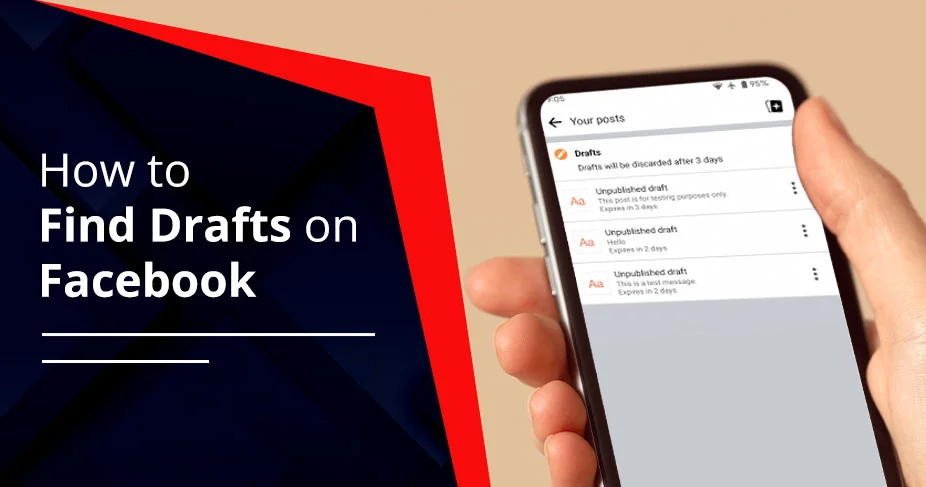
How to Find Drafts on Facebook Personal Profile and Page? 2026 Guide
You can easily find your saved Facebook drafts, whether for your personal profile or a specific page. What you need to do is consider using the “What’s on Your Mind” option, specifically designed for iOS users. On the other hand, if you have an Android device, you must turn on your Facebook app’s notifications. But remember that these methods are only applicable to the personal profile.
For a Facebook page, the best option is to use Meta Business Suite. By understanding all these approaches, you can find it. In this tutorial, we will define all the ways along with the expert’s tips so that you can know how to do it smoothly.
Brief Overview!
- Page Draft Storage: Facebook Page drafts will stay for a long time until you manually publish or discard them. However, it can only be deleted when there are some temporary glitches or your browser has updated.
- Temporary Profile Drafts: Personal profile drafts are temporary and typically persist for up to 3 days, provided you don’t log out or clear your app cache
- Syncing Differences: Your personal profile’s draft doesn’t sync across other devices, whereas Facebook Pages do within Meta Business Suite.
How to Find Drafts on Facebook on Your Personal Profile?
There are two methods to do so:
#1. Using What’s on Your Mind?
You can only save one draft at once, and make sure to check the What’s on your mind? field. Now, follow the instructions listed below. Note that this will work on an iOS device.
- Open your Facebook app.
- Craft a timeline post without uploading it.
- Tap on the X icon.
- Choose Save as Draft.
- Tap on What’s on your mind?
- Here, you will see your saved draft.
Now, you can edit your saved draft. Tap on the Edit button if you want to post it. Besides this, if you have started a new post but you haven’t mentioned anything, make sure to see your Drafts folder for “AI Suggestions.” In 2026, find ‘AI-Assisted Suggestions’ in your drafts to refine unfinished thoughts.
#2. Via a Notification
It is useful for Android users.
- Start preparing a new post on your Facebook account.
- Press the back button.
- After editing a post, you can tap on the Save as Draft option.
Note! Make sure to turn on the notifications on Facebook.
- Facebook will notify you with a message that “Your Draft Was Saved.”
- Tap on this notification. Here, you will see all your saved and active drafts.
Pro Tip! Make sure to use the personal profile saved draft post within 3 days after editing. Otherwise, it will disappear permanently.
How to Find Drafts on a Facebook Page Using Meta Business Suite?
You can easily access your saved draft post by using Meta Business Suite. To do so, go through the section below.
For Website:
- Visit facebook.com.
- Click on Pages.
Note! It is also possible from your personal account. But make sure to link it with the Page you are willing to Manage.
- Click on Meta Business Suite.
Otherwise, directly navigate to business.facebook.com. Then, sign up for your account with your required login information.
- Hit Create Post.
- Start crafting the post.
- Also, you can add photos or videos if you want.
- Click on Finish Later.
Warning! If you select ‘Save as Draft,’ your work is stored; however, selecting ‘Discard’ will move the post to a 24-hour recovery window in Meta Business Suite.
- Now, what you need to do is go back to the Meta Business Suite Page.
- Click on the ‘Content‘ tab in the left-hand sidebar, represented by the overlapping squares icon
- Then, you will be promptly taken to the Posts and Reels window.
- Click on Drafts and pick the one you are willing to work on.
- Here, you can edit, review, and finalize your unfinished post. Otherwise, you can click on Cancel if you don’t want to make any changes.
- To delete your unfinished drafts:
- Open the Drafts tab.
- Click on three horizontal lines.
- Go to Manage Post.
- Click on Delete Post.
- To delete your unfinished drafts:
Here, you will see all your saved draft content.
For Mobile Application:
- Download Meta Business Suite on your device.
- Log in to it by mentioning your user ID and password. Make sure to enter all the details that are relevant to your Facebook Page.
- Tap on Create Post. This option may be available at the bottom of your screen.
- Look for the “Select where to publish” menu, where you need to choose your Facebook Page.
- Tap on the Done button.
- Create a post and tap on Next.
- Choose Save as Draft and be sure to tap on Save Draft.
- Again, open the app.
- Come to Content.
- Go to Posts.
- Choose Drafts from the drop-down menu.
- Select the preferred draft.
Important Point to be Noted! When you use the Meta Business Suite, you can easily Cross-Platform Sync. For example, if you have an Instagram account that is linked with Facebook, any draft you have created for Facebook can be turned on to show up for Instagram. By doing this, you can save your time.
Facebook Personal Profiles Vs Pages Drafts
To clear all your doubts, I am providing you with the difference between Facebook pages and personal profile drafts.
| Aspect | Facebook Personal Profile Draft | Facebook Pages Drafts |
| Where to Find |
|
Meta Business Suite → Content → Drafts. These steps are applicable to both desktop and mobile devices. |
| Draft Management | You can save only one draft at a time. | You can refine, schedule, and create multiple drafts |
| Expiration | Drafts will expire after 3 days. | These drafts are stored permanently. However, they can be lost because there may be technical issues, app bugs, or browser updates. |
| Cross-Device Access | Your drafts are saved locally. Plus, it doesn’t sync across other devices. For example, your saved drafts on an Android device will not appear on an iPhone. | It is configured across other devices through the Meta Business Suite. |
| Visibility | Only individual users can see the saved draft. | Page admins or editors can see the draft. |
Key Points to be Noted!
- If you are willing to manage your business or a brand, use Meta Business Suite. By opting for it, you can also save drafts for a long period of time.
- If you have a personal profile, saving drafts is not recommended. After 72 hours, your drafts will disappear, and you can’t even schedule the content to be automatically uploaded.
- You can only save your draft of Facebook pages on your desktop.
Why Can’t I Find My Facebook Drafts?
Some common troubleshooting solutions are described below.
- Check Notifications: If you are in search of Facebook Drafts on your mobile device, just look for an alert. On your screen, Facebook notifies you regarding a draft that is saved. Tap on it.
- Re-open What’s on your mind: Tap on the option that states, “What’s on your mind?” This will appear within your feed or profile. There you can find your saved draft.
-
- Drafts are Temporary: Your saved drafts will only disappear when you log out of your Facebook account, or you have created a new post without even saving the previous content.
- Restart or Clear Cache: If you find that your Facebook app is glitching, it’s a temporary issue. You can force close the application. Alternatively, you can remove the app’s cache. If you are still finding some issues, you can delete the app. And then install it again.
- Check your Page Drafts (Meta Business Suite): If you have saved a draft on your Facebook page, it is usually stored within Meta Business Suite. You can check it under the Content section. Make sure that it will not appear on your personal account.
- No Drafts Saved: Make sure you have saved your old drafts by tapping on the Save Draft option. However, Facebook drafts won’t instantly save unless you do it manually.
- App Version Differences: You are using an outdated application, and make sure to choose the appropriate device, as iPhones and Androids have slightly different features.
Drafts vs. Scheduled Posts
Here is the tabular information on drafts and scheduled posts.
| Feature | Drafts | Scheduled Posts |
| Definition | Unpublished posts are saved for later, whether a user wants to edit or review. | Posts are set to instantly publish at a certain future date/time. |
| Purpose | It is helpful for brainstorming, storing incomplete ideas, or collaborating before publishing the post. | They ensure consistent posting. Plus, it maximizes engagement by targeting optimal times and reduces manual effort. |
| Visibility | They are only visible to page admins or editors in the Meta Business Suite or Facebook app. Moreover, they are not visible to the public. | It becomes visible to the public automatically at the scheduled time. |
| Editing Options | It can be fully edited, such as text, links, images, and hashtags, before publishing. | They can be edited or rescheduled before the scheduled time, but once published, edits are limited. |
| Storage Location | You can find it under Meta Business Suite → Posts & Stories → Drafts. On your mobile device, drafts are stored in the app for 3 days (unless published). | They are located under Meta Business Suite → Planner → Scheduled Posts. |
| Collaboration | Team members can easily review, comment on, and modify drafts before publishing. | Team members can set the time or content, but the post is already finalized for publishing. |
| Best Use Case | Users are working on the content. Sometimes, they may need approvals or want to save ideas for the future. | When a user wants to automate posting, maintain consistency, and reach audiences at high times. |
| Risks/Limitations | Drafts will expire after 3 days on mobile devices if they are not published. There is a risk of forgetting to publish. | Risk of publishing outdated content if scheduled too far in advance. |
| Tools Integration | Works perfectly with Meta Business Suite. | Meta Business Suite and third-party scheduling tools support it. |
Key Takeaways!
- “Drafts” simply means that your work is in progress. Plus, it is perfect for collaboration, refinement, and ideation.
- Meanwhile, Scheduled Posts means that a user wants to automate their content. Also, it is ideal when they want engagement, consistency, and time management.
- These Facebook features complement each other. First, users need to start preparing the content, save it, edit it, and then set the time when it should be posted.
- As of 2026, Meta Business Suite manages both drafts and scheduled posts for linked Facebook profiles.
What are the Limitations of Facebook Drafts?
These drawbacks will be beneficial for you further.
-
- One Draft Limit for Personal Profile: You are allowed to save one draft post at once on your personal account.
- Expiration Time: The personal profile’s draft will be gone or deleted after 3 days.
- Device Limitation: Drafts on personal accounts are saved locally on the particular device or web browser’s cache, rather than directly on the Cloud. It means that if you have saved your Facebook draft on your mobile and try to open it on your desktop web browser, you won’t be able to find it. However, it has not been configured with the central server yet. Plus, if you erased your browser cache to get extra storage, your saved draft will also be removed.
- No Collaboration for Page: You can save multiple drafts in Page. However, it is very challenging to manage a complicated, team-based, or even multi-platform content strategy without using any third-party scheduling tools.
- Fragility: Drafts are only on a temporary basis. Plus, if you have started working on a new post, your previous draft will disappear from your personal account.
How to Manage Facebook Drafts Effectively?
These are some pro tips to effectively manage your Facebook drafts.
- Complete your draft by reviewing or editing within the What’s on your mind section.
- Make sure to discard or upload the previously saved draft. After that, start preparing a new one.
- Consider using Meta Business Suite for Facebook Pages and then manage a number of drafts.
- You can tap on X on a new post. Then, your screen will show you the option of Save as Draft. Tap on it. Otherwise, you can opt for the Discard option if you are willing to remove the unpublished content.
Frequently Asked Questions With Their Answers
The following questions will help you to have a better understanding of finding Facebook drafts.
Q1. Where can I see my drafts on Facebook?
Ans. First, turn on your Facebook app notifications. After that, start preparing a new post by tapping on “What’s on your mind?” Then, your saved content will automatically go to the draft, and Facebook will send you an alert regarding it. Tap on it and see your draft.
Q2. Are Facebook drafts saved automatically?
Ans. NO! Your Facebook drafts will not be saved instantly unless you tap on the Save Draft option. Plus, you can save one draft at a time.
Q3. Do Facebook drafts expire?
Ans. YES! Facebook drafts are designed for temporary storage. It means that your drafts will expire after 3 days or 72 hours.
Q4. How do I edit a saved draft on Facebook?
Ans. Follow the listed instructions.
- Open Facebook.
- Click or Tap on Write Something.
- Your saved draft will appear on your screen.
Now, edit your saved draft.
Q5. Does Facebook give draft post notifications?
Ans. YES! Facebook notifies you when you create a draft post, whether on iOS or Android devices. For a desktop-based web browser, it might be impossible, inconsistent, and even unreliable to send notifications.
Q6. How to recover deleted drafts on Facebook?
Ans. Generally, you cannot recover your deleted drafts after Facebook deletes them. You can only do one thing: check your notifications section. If you find that Facebook had notified you earlier and the alert is present. Tap on it and see the content.
Q7. How to save a Facebook reel as a draft?
Ans. These steps will help you out.
- Open your Facebook and come to its feed.
- Tap on +.
- Go to the Reel section and start creating a reel.
- Start editing your reel.
- Tap on Save.
It will save your Facebook reel as a draft.
Q8. Can I see drafts on Facebook Lite?
Ans. YES! Facebook Lite allows you to see your drafts only for your personal account. Plus, they are only for a temporary period.
Concluding Words!
By following the above-listed methods, you can effortlessly find out your saved drafts on your Facebook profile and page. Just remember a few points that will help you further. First, you must use the best quality of internet connection. Next is to update your Facebook app and then start using it. After that, if you find that your saved drafts are missing, restart the application or clear its cache to restore them. Therefore, by all these trips and tricks, you will be able to locate your drafts.